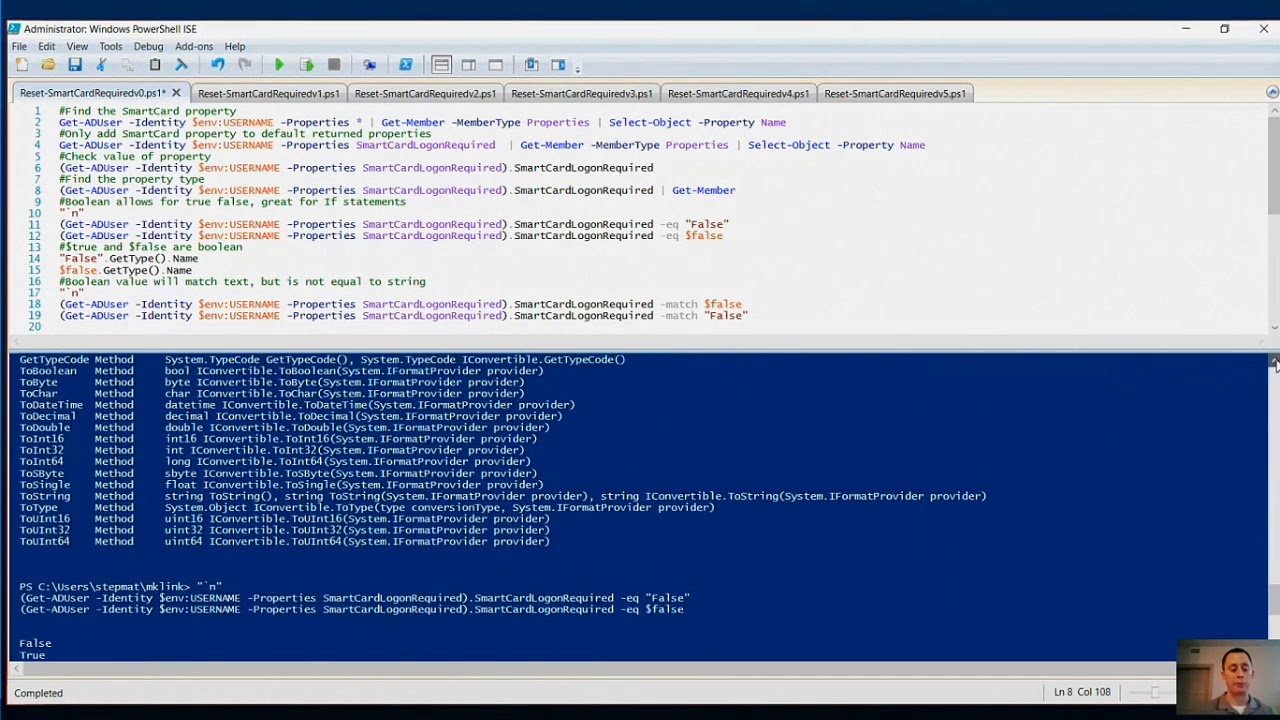
PowerShell scripts have revolutionized the way I approach tasks in my daily work routine. As a powerful scripting language and command-line shell designed specifically for system administration, PowerShell allows users to automate repetitive tasks, manage systems, and streamline workflows on Windows environments. In this article, I’ll share how PowerShell scripts have become a game-changer for my productivity, along with practical examples and tips to help you harness their power.
What are PowerShell Scripts?
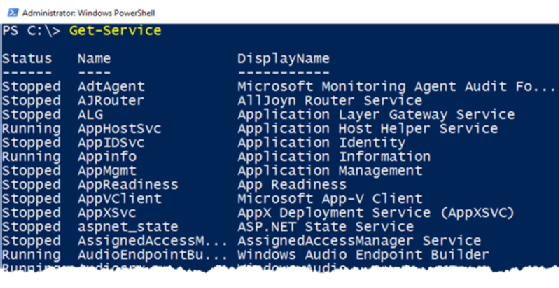
PowerShell is a task automation framework that consists of a command-line shell and an associated scripting language. It is built on the .NET framework and is designed to help system administrators and power users automate the management of the Windows operating system and applications.
Key Features of PowerShell
- Object-Oriented: Unlike traditional command-line interfaces that handle text, PowerShell works with objects, making it easier to manipulate data and interact with system components.
- Extensive Cmdlets: PowerShell comes with a wide array of built-in cmdlets (command-lets) that perform specific tasks, such as managing files, services, and processes.
- Scripting Capabilities: Users can write scripts to automate complex tasks, allowing for greater efficiency and consistency in system management.
- Remote Management: PowerShell supports remote management, enabling users to execute commands on remote systems, which is invaluable for system administrators managing multiple servers.
How PowerShell Scripts Boosted My Productivity
1. Automating Repetitive Tasks
One of the most significant benefits of using PowerShell scripts is the ability to automate repetitive tasks. For instance, I often need to generate reports on system performance and user activity. Instead of manually gathering this information, I created a PowerShell script that collects the necessary data and formats it into a report.
Example Script: Gathering System Information
# Get system information and save it to a text file
$systemInfo = Get-ComputerInfo
$systemInfo | Out-File "C:\Reports\SystemInfo.txt"
This simple script retrieves comprehensive system information and saves it to a text file, saving me hours of manual work each month.
2. Batch File Management
Managing files and directories can be time-consuming, especially when dealing with large numbers of files. PowerShell scripts allow me to perform batch operations, such as renaming, moving, or deleting files efficiently.
Example Script: Renaming Files in a Directory
# Rename all .txt files in a directory
Get-ChildItem "C:\Documents\*.txt" | Rename-Item -NewName { $_.Name -replace 'old','new' }
This script renames all .txt files in the specified directory, replacing “old” with “new” in the filenames. Such batch processing has streamlined my file management tasks significantly.
3. System Monitoring and Alerts
PowerShell scripts can also be used for monitoring system performance and generating alerts based on specific conditions. For example, I set up a script to monitor disk space and send an email alert if it falls below a certain threshold.
Example Script: Monitoring Disk Space
# Check disk space and send an alert if below 10%
$threshold = 10
$disks = Get-PSDrive -PSProvider FileSystem

foreach ($disk in $disks) {
    if ($disk.Used / $disk.Size * 100 -ge $threshold) {
        Send-MailMessage -To "[email protected]" -From "[email protected]" -Subject "Disk Space Alert" -Body "Disk space on $($disk.Name) is below $threshold%." -SmtpServer "smtp.example.com"
    }
}
This script monitors disk usage and sends an email alert if any disk’s used space exceeds the defined threshold, ensuring I stay informed about system health without manual checks.
4. Simplifying User Management
Managing user accounts in Active Directory can be a daunting task, especially in large organizations. PowerShell scripts simplify user management tasks such as creating, modifying, or deleting user accounts.
Example Script: Creating a New User in Active Directory
# Create a new user in Active Directory
New-ADUser -Name "John Doe" -GivenName "John" -Surname "Doe" -SamAccountName "jdoe" -UserPrincipalName "[email protected]" -Path "OU=Users,DC=example,DC=com" -AccountPassword (ConvertTo-SecureString "P@ssw0rd" -AsPlainText -Force) -Enabled $true
This script creates a new user in Active Directory with specified attributes, streamlining the onboarding process for new employees.
Tips for Effective PowerShell Scripting
- Start Small: Begin with simple scripts to familiarize yourself with PowerShell syntax and cmdlets. Gradually build complexity as you gain confidence.
- Use Comments: Comment your code to explain the purpose of each section. This practice improves readability and helps you and others understand the script later.
- Test Scripts in a Safe Environment: Before running scripts in a production environment, test them in a safe environment to avoid unintended consequences.
- Leverage Online Resources: Utilize online resources, forums, and documentation to learn new cmdlets and techniques. The PowerShell community is vast and supportive.
- Keep Scripts Organized: Maintain an organized folder structure for your scripts, and consider using version control (e.g., Git) to track changes and collaborate with others.
Conclusion
PowerShell scripts have been a game-changer for my productivity at work, enabling me to automate repetitive tasks, manage files efficiently, monitor system health, and simplify user management. By leveraging the power of PowerShell, I’ve significantly reduced manual effort and improved overall efficiency in my daily operations. If you’re looking to boost your productivity and streamline your workflows, I encourage you to explore PowerShell scripting and discover the many ways it can transform your work routine. Embrace automation, and watch your productivity soar!